- DATE:
- AUTHOR:
- SAP LeanIX Product Team
Change announcement: Redesign of the inventory table view
On June 10, we are releasing a redesigned table view across your workspace inventory. This redesign removes unnecessary steps from the editing workflow and makes better use of your available screen space. Here is an overview of what will change.
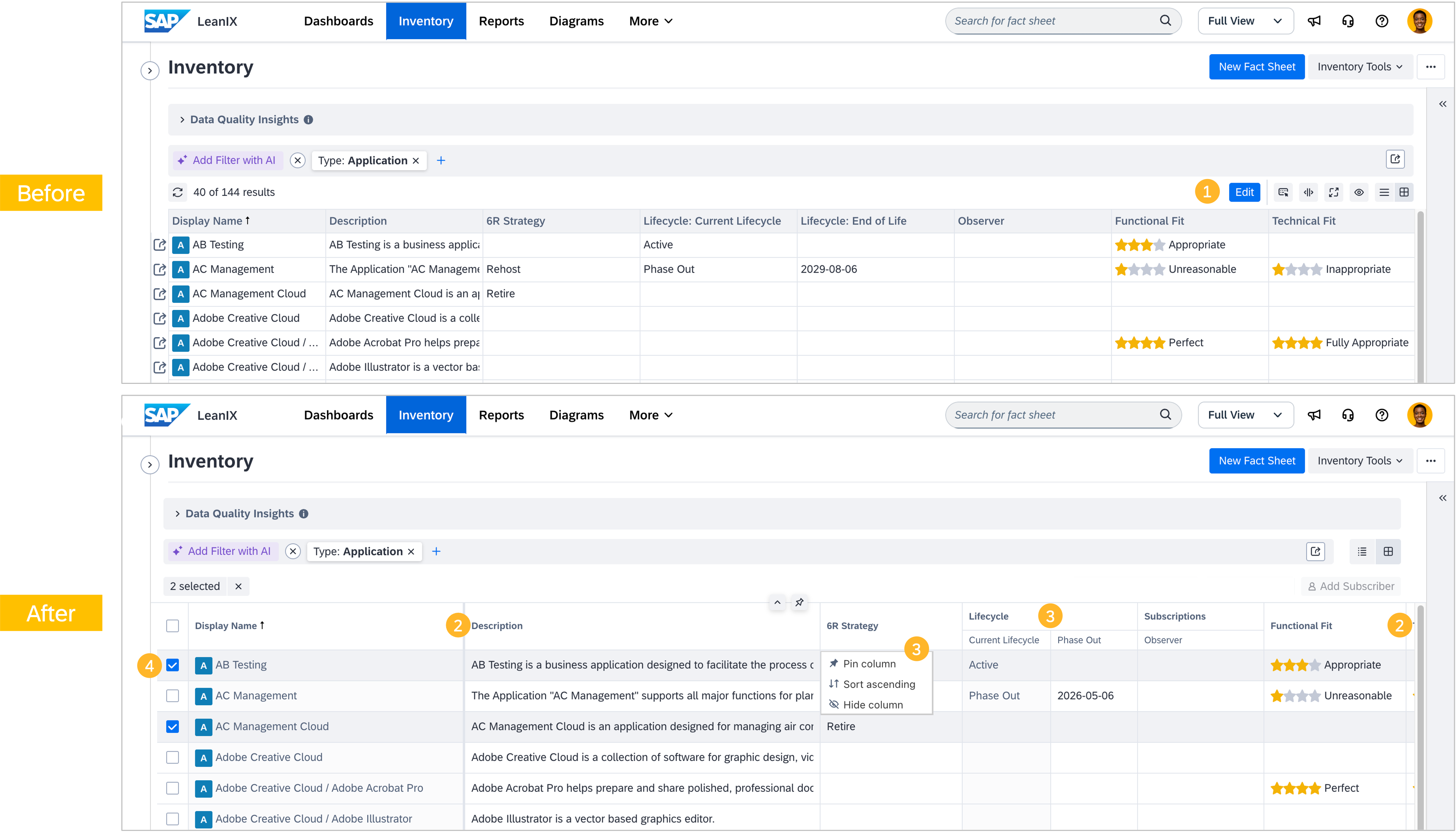
1. Direct editing — no more edit mode: The Edit button will be removed. Instead of switching to edit mode first, you will be able to click directly on any cell to start editing straight away. The removal of the edit button does not grant additional permissions to users but a user's individual permissions are respected at all times.
2. More space for your data: The table will make better use of your screen in three ways: Columns will extend beyond the visible screen width and will be accessible via smooth horizontal scrolling. Each column width will adapt automatically to the content type of the field. As you scroll down through a long list, the top bar will automatically collapse to free up vertical space. A floating button will let you jump back to the top instantly. When switching to table view, the left and right side panels will automatically collapse to give more horizontal space to the table.
3. Column management improvements: Several column management capabilities will be added or improved. You will be able to pin any column to keep it anchored at the left edge while scrolling horizontally. Pinned columns can be unpinned just as easily. Columns can be hidden directly from the column header, without opening the manage columns panel. Columns of the same type, such as Tags, Subscriptions, or relational fields, will be grouped under a single shared header, making the table cleaner and easier to navigate. The “Auto-adjust width” button will reset all columns to their default widths, rather than attempting to fit everything on screen at once.
4. Multi-select and bulk actions: You will be able to select multiple fact sheets using checkboxes and apply actions to all of them at once: for example archive or restore a fact sheet, or add a subscriber.
The changes will take effect automatically on the date of the release and no actions are required from you. Your existing column selections and saved searches will be preserved. To learn more about working with the table view, see the SAP Help Portal.